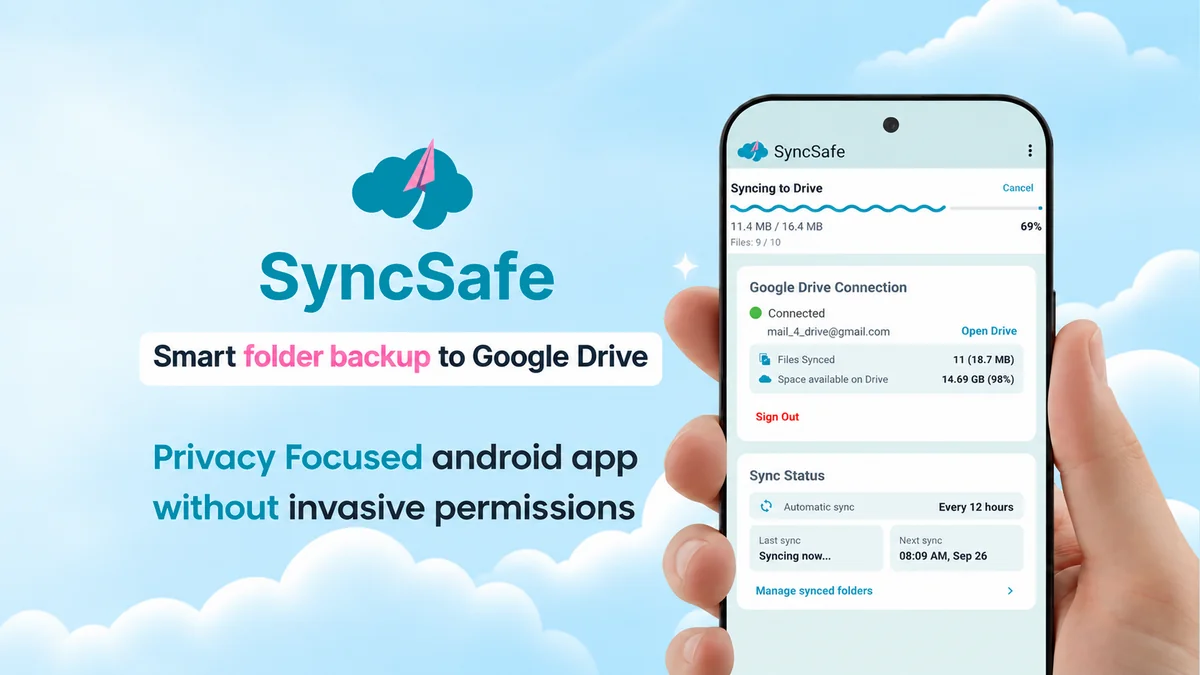
Small permissions. Big difference.
Choose folders with Android’s folder picker. SyncSafe does not ask for full access to your device storage or Google Drive.
A LITTLE APP. A LITTLE MORE PEACE OF MIND.
Back up the folders that matter, straight from your Android device to your own Google Drive. Simple, private, and always ad-free.
Free to start · Android 10+ · Optional one-time support
BACKUP, WITH BOUNDARIES
Keep your files in your own Google account. SyncSafe asks for just the access it needs to back up the folders you select.
Selected folders
Your own account
Choose folders with Android’s folder picker. SyncSafe does not ask for full access to your device storage or Google Drive.
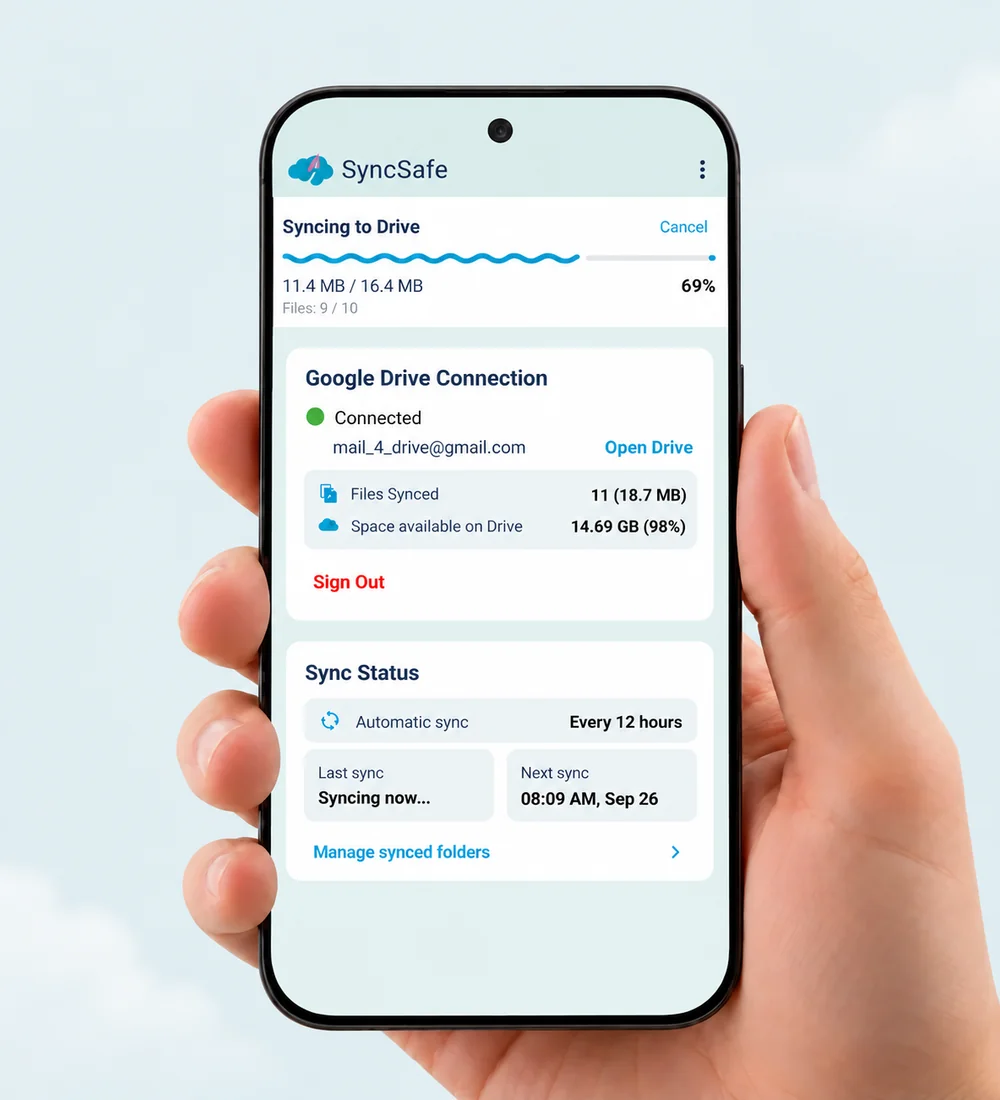
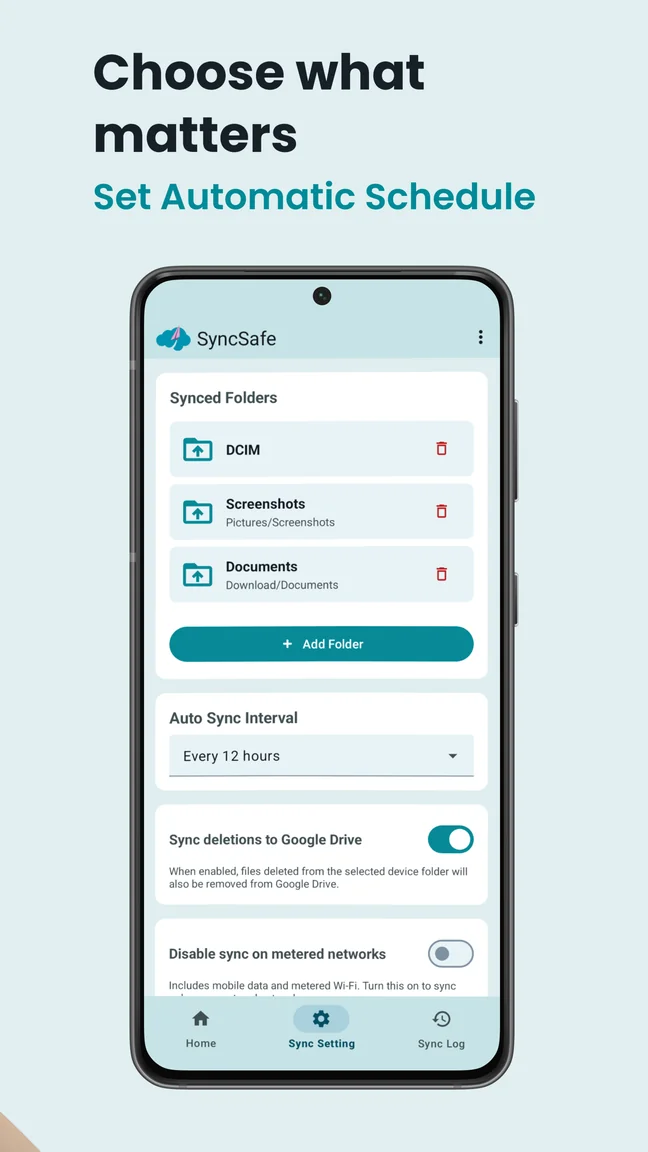
Sync manually whenever you need to, or let Android manage automatic backups. Control mobile data and battery settings in the app.
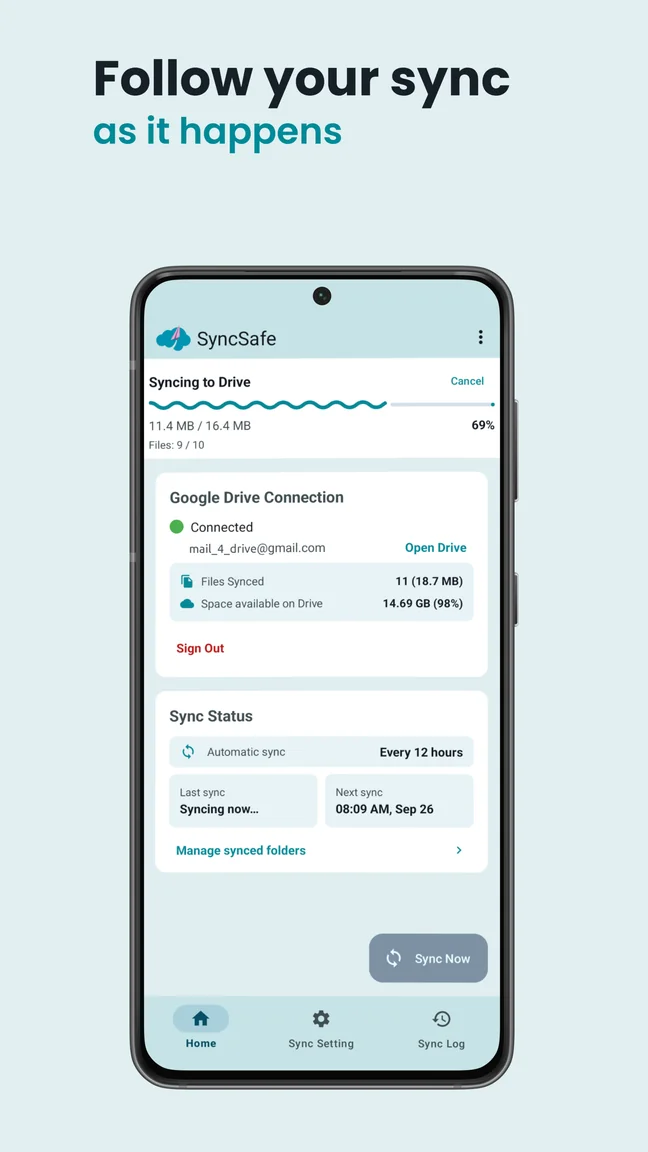
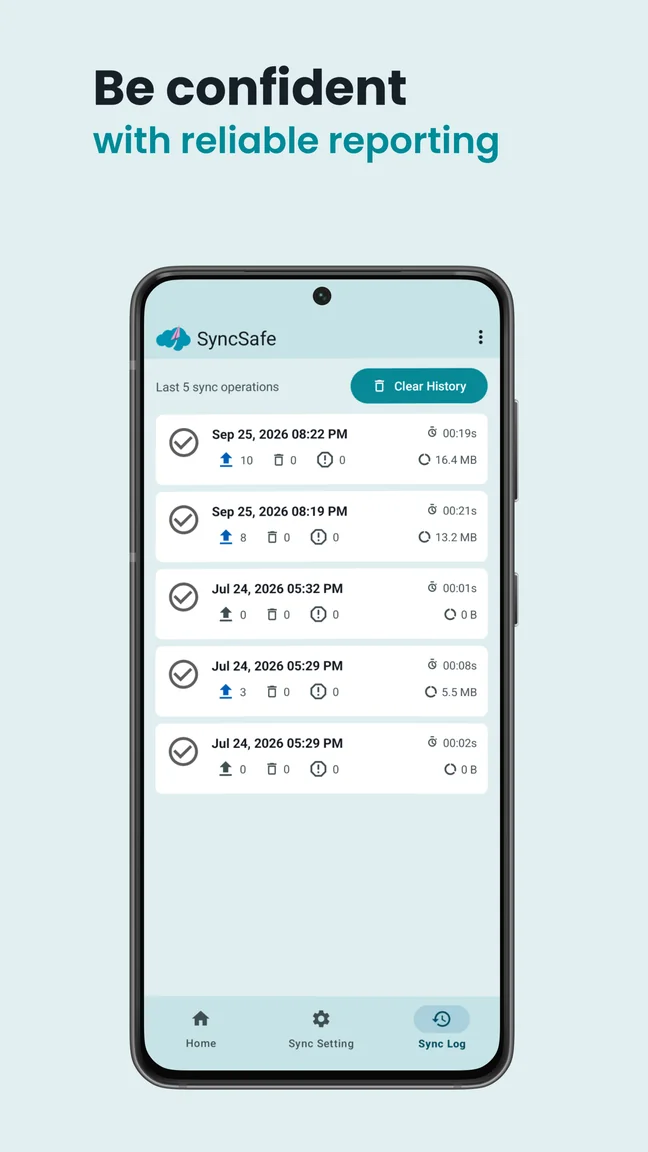
See available Drive space, sync results, and retries. Turn on cloud verification to check for missing Drive files.
See how it works
Sign in with Google and grant SyncSafe limited Drive access.
Select what matters with Android’s folder picker. You stay in control.
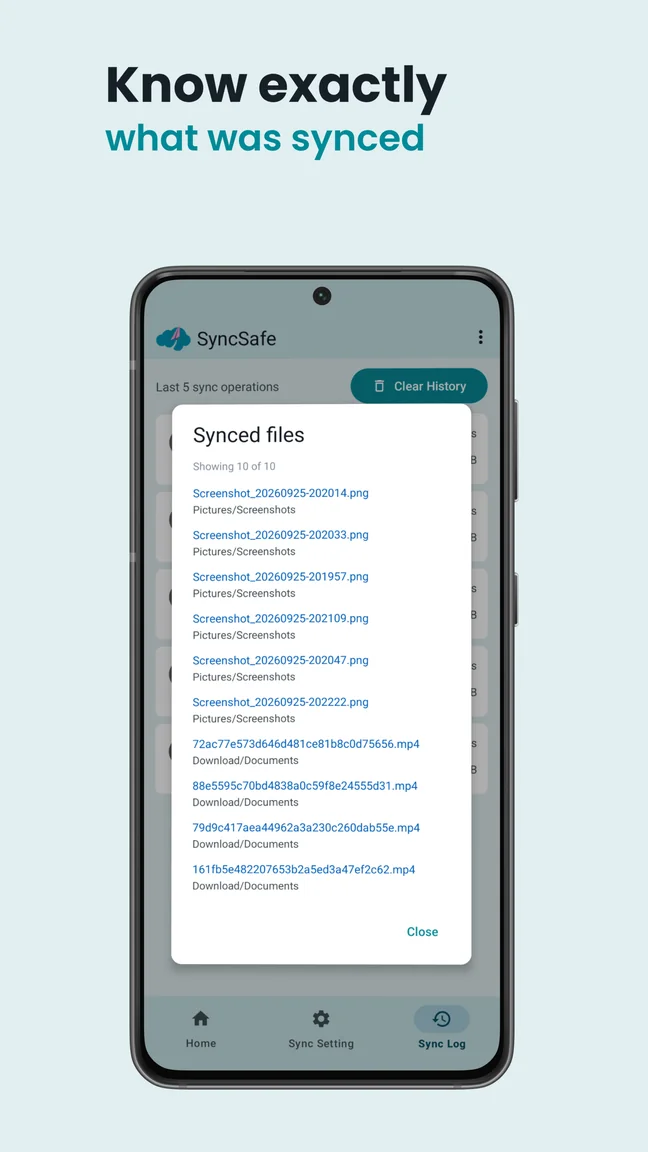
Tap Sync Now or set a schedule. Check your sync logs to confirm your backup.
SEE SYNCSAFE IN ACTION
See how SyncSafe brings simple, private folder backups to your Android device.
Watch on YouTubeA CLOSER LOOK
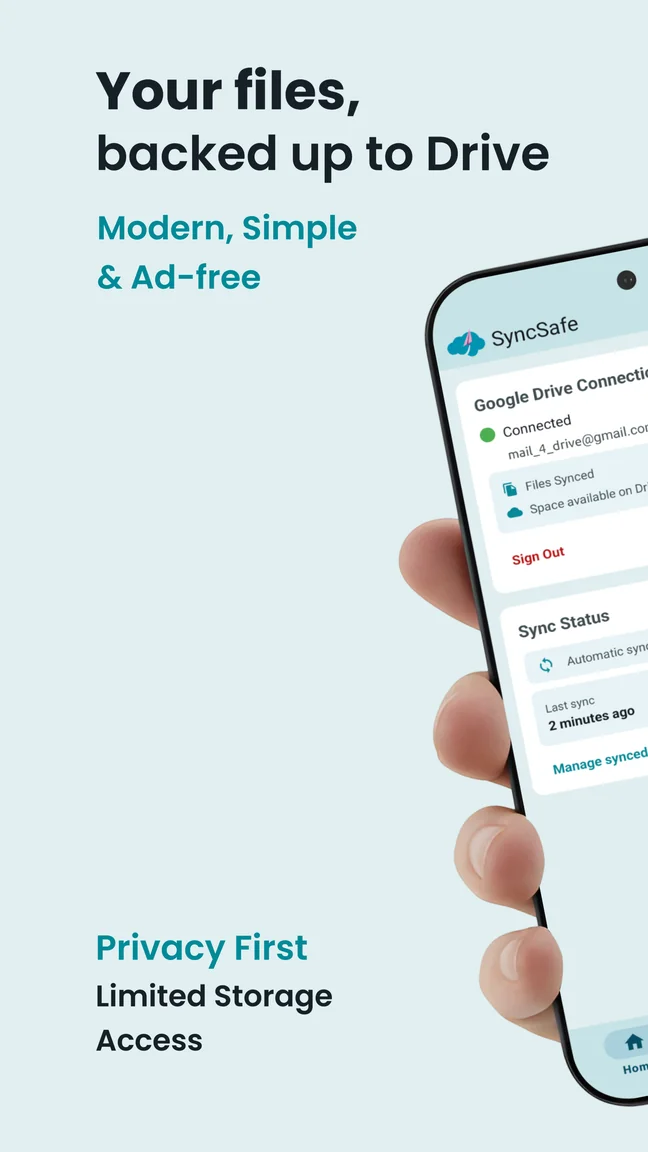
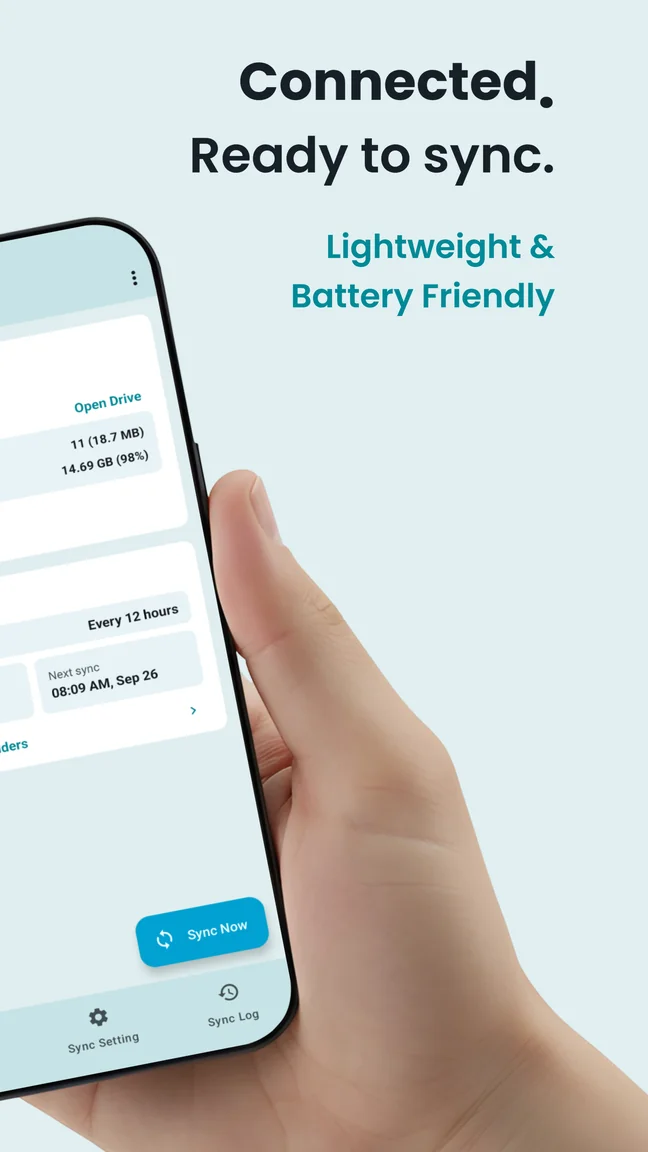
A clear interface, useful controls, and a little reassurance at every step.
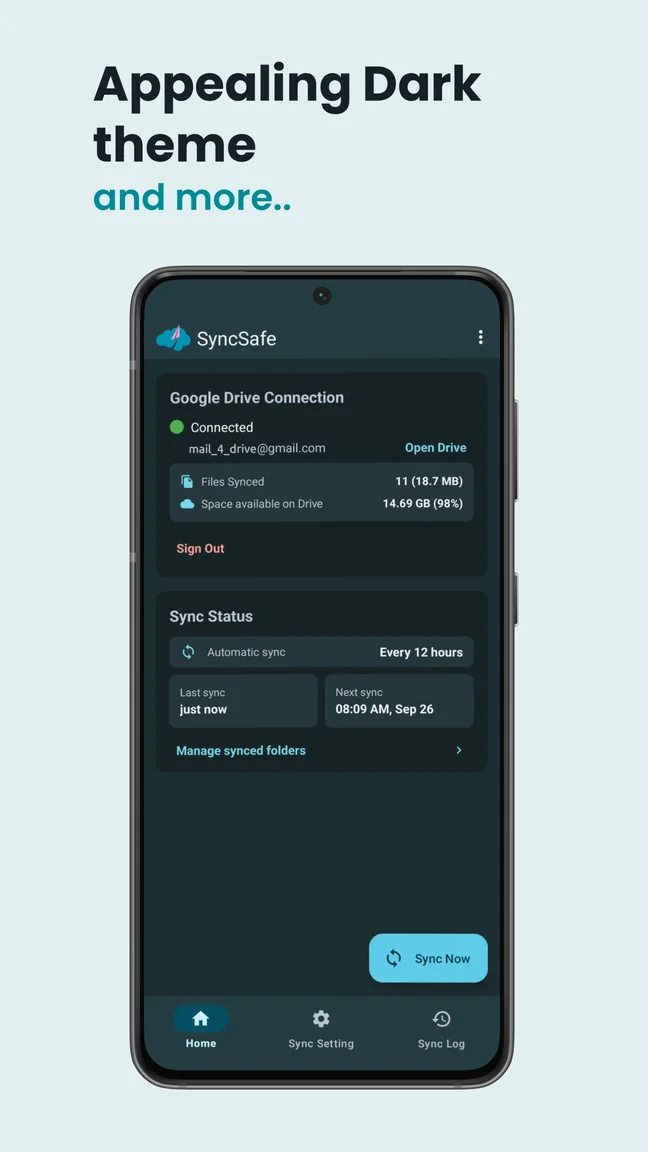
HELP KEEP SYNCSAFE INDEPENDENT
The essentials are free. A one-time Supporter purchase helps keep SyncSafe ad-free and unlocks extra control.
Choose any support amount in the app. Every amount permanently unlocks the same features. Purchases are handled by Google Play.
Good to know
Straightforward answers, from permissions to your next backup.
SyncSafe can access only:
1. The device folders you choose through Android's folder picker.
2. The files and folders SyncSafe creates or is allowed to open in Google Drive.
It does not request full device storage access or full Google Drive access.
No. SyncSafe is designed as a one-way backup tool from your device to Google Drive.
This is intentional because SyncSafe uses limited Google Drive access. To sync files from Google Drive back to your device, the app would need broader access to your Drive, which goes against our privacy-focused design.
By default, SyncSafe works in backup mode and won’t delete files from Google Drive when you delete them locally. You can switch to syncing mode by enabling “Sync deletions to Google Drive” in settings. Your Drive backup will then mirror your local folders.
Scheduled sync tasks are managed by Android. Android may delay background work due to battery optimization, network conditions, storage status, or system scheduling rules.
For better scheduled sync performance, allow SyncSafe to use background data and enable unrestricted battery usage. Relevant options are available on the home screen.
Have a question or something to report? Get in touch with the developer.